How to load Next.js environment variables at runtime with Dopbase
Use the Dopbase Node.js SDK to load server-side secrets at runtime in a Next.js App Router app. Follow a working example with screenshots.
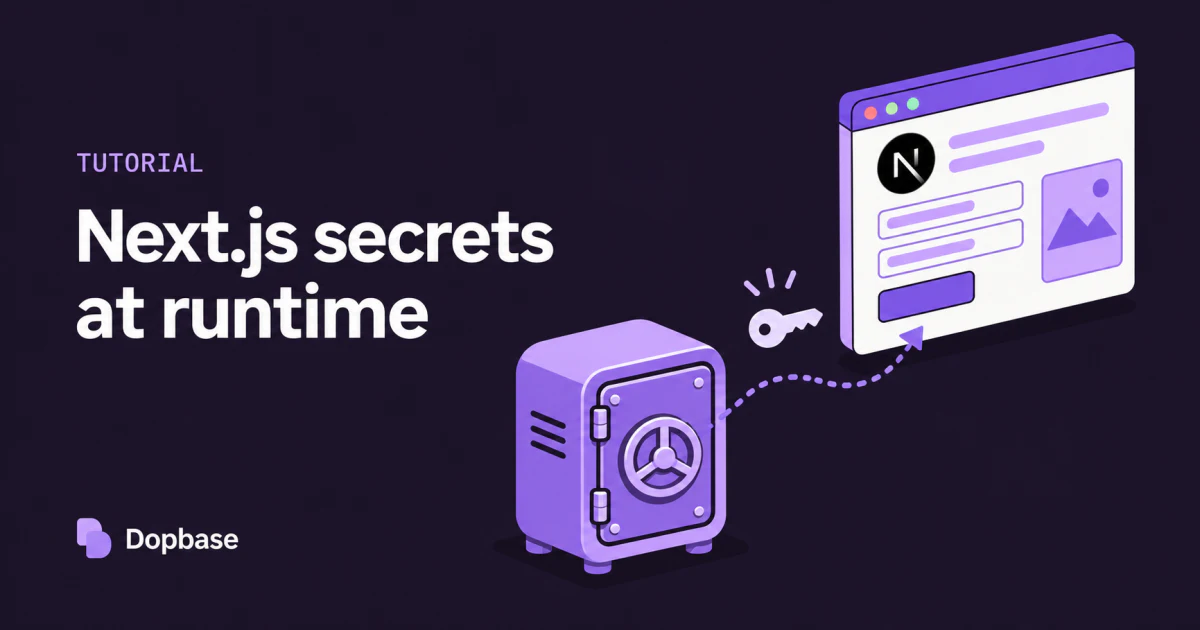
A teammate pulls the latest changes to your Next.js app. The code builds, but the feature they need to test still fails. It turns out their .env.local has yesterday’s API key. A shared development environment gives the team one place to update that key and gives each app a way to fetch it.
In this tutorial, a Next.js app runs on your laptop and reads secrets from a Dopbase server using @dopbase/sdk. You’ll build the app before supplying any Dopbase credentials, then start it and open a page that confirms which environment it reached and whether two values are configured.
Contents
- What you need
- 1. Set up a shared development environment
- 2. Create the Next.js app
- 3. Read the secrets on the server
- 4. Build first, then start with Dopbase
- What to keep in mind in your app
- Questions and answers
- Conclusion
What you need
- Node.js 22 or later and Bun.
- A Dopbase server that supports the SDK’s runtime endpoint. Use the HTTPS URL of a server you can reach from your laptop. For a local trial, the SDK also accepts an HTTP loopback URL such as
http://127.0.0.1:8840. The screenshots use an isolated local Dopbase 0.2.0 instance. Dopbase self-hosting guide - Permission to create a project, add secrets, and create a runner token in the Admin UI.
The example uses Next.js 16.4.6 and @dopbase/sdk 0.1.1. The database URL and email key are sample values. The app checks that it received them.
1. Set up a shared development environment
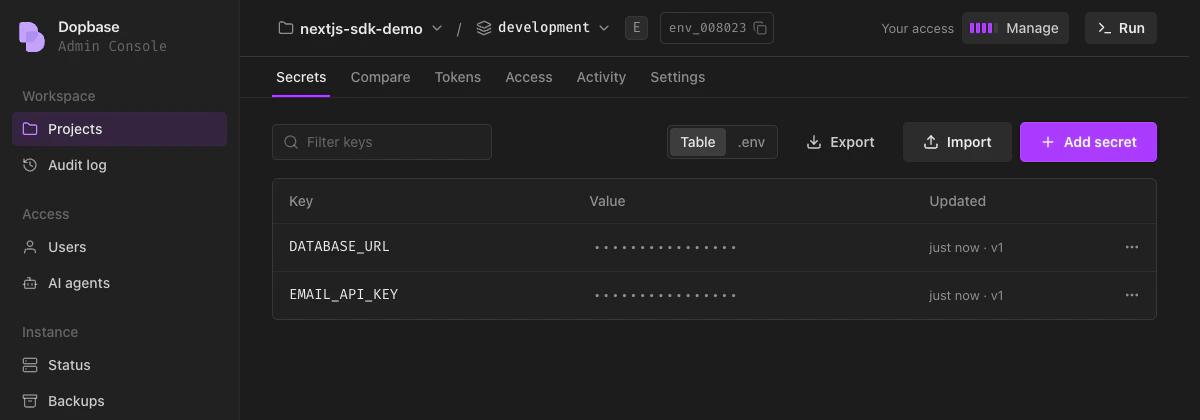
In the Dopbase Admin UI, open Projects. Create a project named nextjs-sdk-demo and an environment named development. In the Secrets tab, choose Add secret and add these two entries:
| Key | Sample value |
|---|---|
DATABASE_URL |
postgresql://demo:sample-password@localhost:5432/demo |
EMAIL_API_KEY |
sample-email-key |
Open the environment’s Tokens tab and select New runner token. Name it nextjs-demo and choose an expiry. A runner token can read all values in its assigned environment, so use a dedicated development environment and keep the token private.
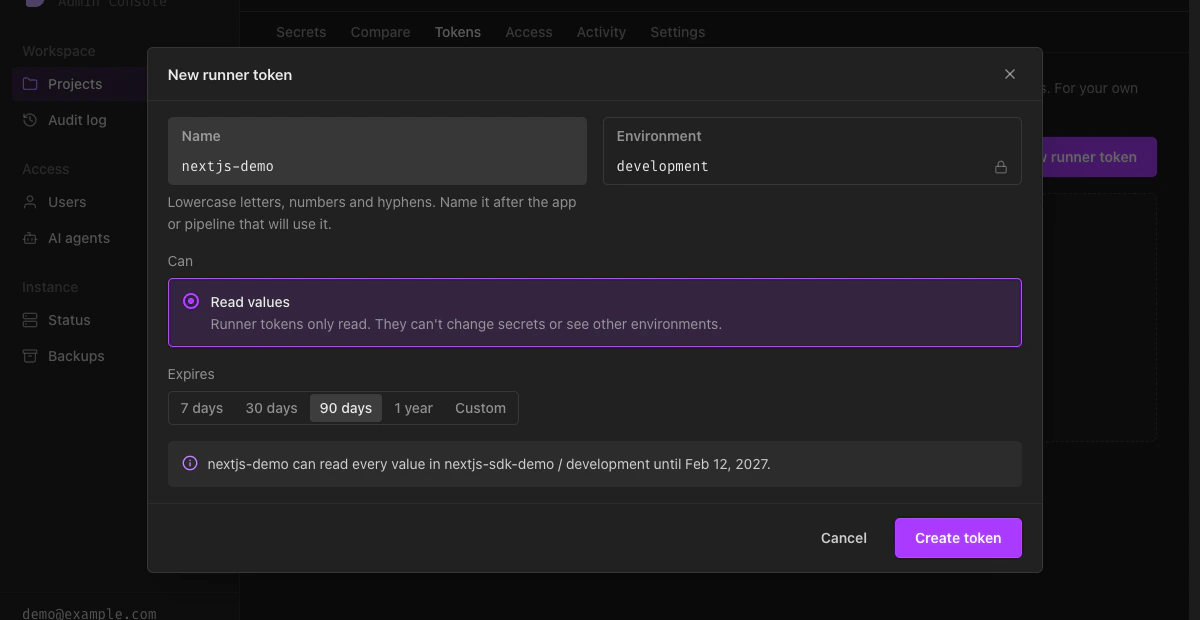
Select Create token and copy the value when Dopbase shows it. You’ll enter it when you start Next.js.
2. Create the Next.js app
Run these commands to scaffold a TypeScript App Router project and install the SDK:
bunx create-next-app@16.4.6 nextjs-dopbase-demo --yes --ts --app \
  --no-src-dir --no-tailwind --no-cache-components --use-bun
cd nextjs-dopbase-demo
bun add @dopbase/sdk@0.1.1 server-only@0.0.1
mkdir -p app/lib
The scaffold command turns off Cache Components so this example can use a single request-time page. If you’re adding the SDK to an existing app that uses Cache Components, follow the connection() guidance for placing the request-time component inside a Suspense boundary. Next.js connection documentation
Create app/lib/dopbase.ts:
import "server-only";

import { DopbaseSDK } from "@dopbase/sdk";

let sdk: DopbaseSDK | undefined;

export async function getDopbase() {
  sdk ??= new DopbaseSDK({ refresh: "once", fallback: false });
  return sdk.load();
}
The server-only import catches an accidental import from a Client Component. The helper creates the SDK on first use, then reuses it in the running process. With refresh: "once", the process keeps the values from its first successful load until you restart it. Setting fallback: false turns off the SDK’s stored copy so a fresh process needs a live response. Dopbase Node.js SDK
3. Read the secrets on the server
Replace app/page.tsx with:
import { connection } from "next/server";
import { getDopbase } from "./lib/dopbase";

export const runtime = "nodejs";

const requiredKeys = ["DATABASE_URL", "EMAIL_API_KEY"];

export default async function Home() {
  await connection();

  const env = await getDopbase();
  const scope = env.snapshot();

  return (
    <main>
      <h1>Next.js runtime secrets</h1>
      {scope && (
        <p>
          {scope.project} / {scope.environment}
        </p>
      )}
      <ul>
        {requiredKeys.map((key) => (
          <li key={key}>
            <code>{key}</code> {env.get(key) ? "configured" : "missing"}
          </li>
        ))}
      </ul>
    </main>
  );
}
await connection() makes Next.js wait for a request before running the code below it. Without it, a Server Component can also run during the build, when Next.js prerenders the page. Here, the first request loads the values and the page renders only the environment name and a status for each key. In your app, pass the values directly to the database or email client in server code. Next.js runtime environment variables
4. Build first, then start with Dopbase
Build the app before setting the Dopbase variables. If your shell already has them set, clear them for this command:
env -u DOPBASE_HOST -u DOPBASE_URL -u DOPBASE_TOKEN -u DOPBASE_ENV bun run buildNext.js should mark / with ƒ, meaning the page renders on demand. In Bash or Zsh, set your Dopbase server URL, then paste the runner token at the hidden prompt:
export DOPBASE_HOST="https://dopbase.example.com"
export DOPBASE_ENV="nextjs-sdk-demo/development"

printf 'Dopbase runner token: '
IFS= read -rs DOPBASE_TOKEN
printf '\n'
export DOPBASE_TOKEN

bun run start
Use the base URL of your Dopbase server for DOPBASE_HOST. The runner token selects the environment. DOPBASE_ENV adds a check so the request fails if you paste a token for a different environment. Keep the token on the server. When you finish the demo, stop Next.js and run unset DOPBASE_TOKEN to clear it from your shell.
Open localhost:3000. The page should show nextjs-sdk-demo / development and mark both keys configured. The screenshot uses a little extra CSS. The project name, environment, and statuses come from the code above.
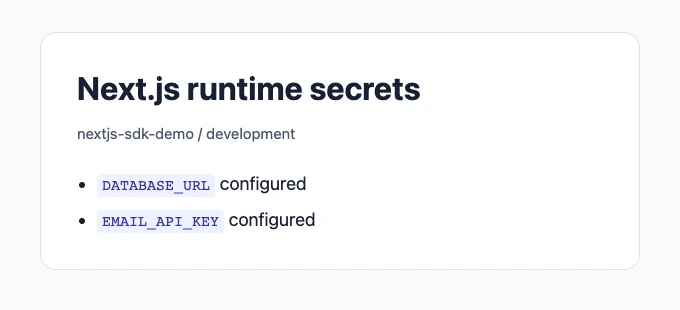
To check the behavior yourself, add a third name such as WEBHOOK_SECRET to requiredKeys and rebuild. It will show missing until you add a nonempty value in Dopbase and restart the built app. After adding that value, you can reuse the same build.
What to keep in mind in your app
Keep private values on the server. Next.js inlines direct references to process.env.NEXT_PUBLIC_* into browser code at build time. Reserve that prefix for values you intend to make public. The SDK example reads private values with env.get(). It leaves process.env alone. Next.js browser environment variables
Decide when changes should take effect. This example loads once per process, so changing a key in Dopbase takes effect on the next restart and request. The SDK also supports polling and TTL-based refresh. If a client holds a connection made with the old credentials, plan how to reconnect it when the value changes. SDK refresh options
Check the server and token if the page fails. A fresh process needs to reach the Dopbase server on its first request. Check the URL, TLS certificate, token expiry, and the DOPBASE_ENV value if the page returns an error. A page that loads and shows missing has reached Dopbase, so check the key name and value in that environment.
Questions and answers
Can I use the same Next.js build for development and staging?
Yes, for the server-side values loaded by this example. Create a separate staging environment and runner token. When you start the same build in staging, set DOPBASE_ENV to the staging environment and supply its token as DOPBASE_TOKEN. If the Dopbase server is different, change DOPBASE_HOST too. Keep any browser settings that use NEXT_PUBLIC_ in mind when deciding whether a build can be shared. Next.js runtime environment variables
Can I keep using process.env in my Next.js app?
Yes. The SDK can put values into process.env with load({ inject: true }). The SDK README shows how to do that at server startup in instrumentation.ts. For local development, you can also launch Next.js with dopbase run and leave your existing process.env reads in place. SDK startup example · Next.js CLI tutorial
What happens if Dopbase is unavailable when the app starts?
With this tutorial’s settings, Next.js can start, but the first page request fails if the SDK still can’t reach Dopbase after retrying. The example sets fallback: false, so it needs a live response on the first successful load. Once the process has loaded its values, refresh: "once" keeps them in memory. SDK error handling and offline fallback
Conclusion
Start with one shared development environment and the keys a teammate needs to run the app. Build Next.js, start it with that environment’s runner token, and check the project and environment shown on the demo page. When a development key changes, update it in Dopbase and restart the app. The same Next.js build will pick up the new value on its next request.