How to Manage Next.js Environment Variables with Dopbase
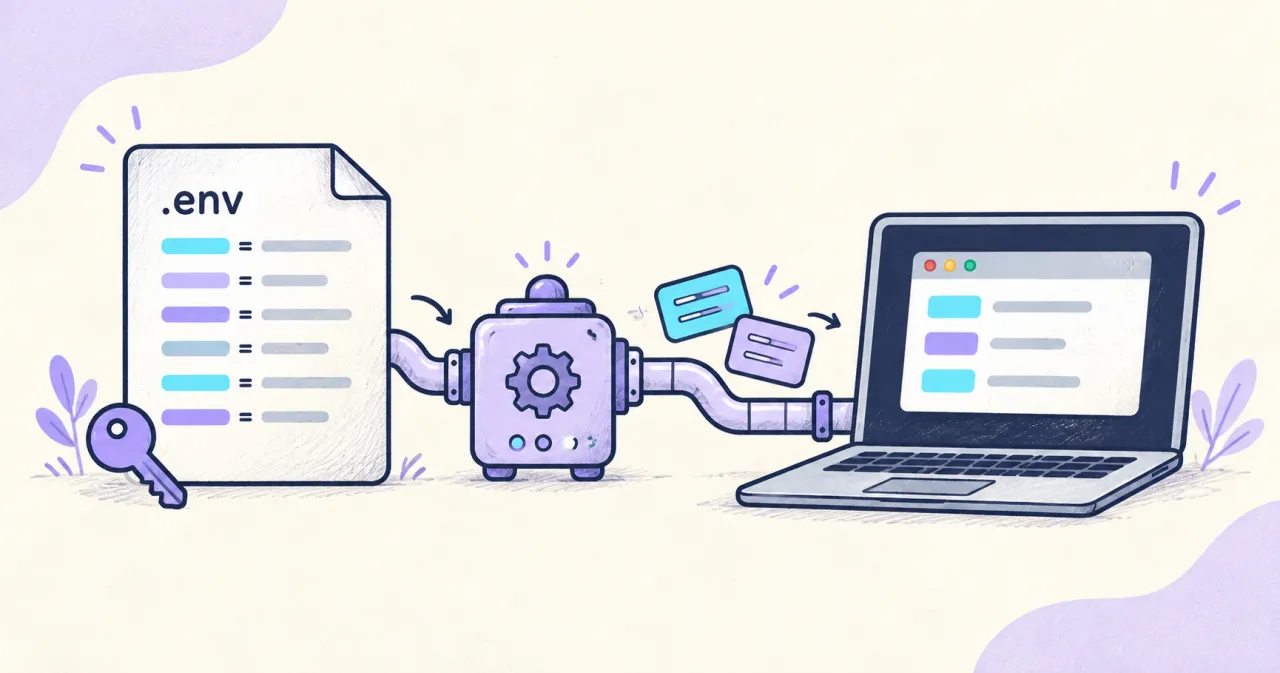
Use Dopbase with Next.js for local development. Import your environment variables, run the dev server without .env.local, and update values in one place.
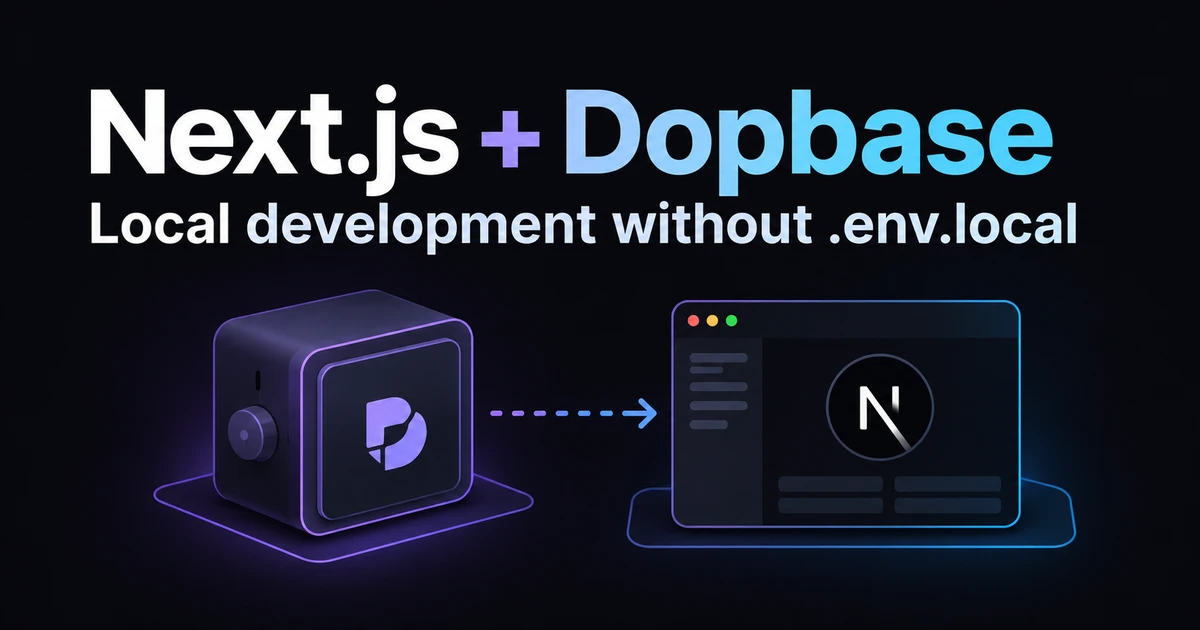
A Next.js app needs a few API keys and a database URL. You put them in .env.local, start the dev server, and get back to work. The extra work starts when you change a key and have to update another laptop or send the new value to a teammate.
Dopbase can supply your Next.js environment variables when you start the app. You store the values in Dopbase, launch Next.js through dopbase run, and keep reading process.env in your code. The command doesn’t create .env.local in your project.
This guide walks through that local setup with a small demo. You won’t need a database or paid API account. All credentials in the examples and screenshots are sample values.
Table of contents
- When this integration is useful
- What you need
- 1. Install Dopbase
- 2. Create the Next.js app
- 3. Import your development variables
- 4. Add a simple demo page
- 5. Run Next.js with Dopbase
- 6. Update a variable
- Questions and answers
- Conclusion
When this integration is useful
Dopbase is useful when maintaining local environment files starts taking time away from coding:
- You switch between laptops and want each one to fetch the same development configuration after signing in to the same Dopbase server.
- A teammate joins the project and needs access to a shared development environment without receiving a file over chat.
- You rotate an API key and want to update its stored value once, then restart the apps that use it.
- You want working credentials outside the project directory while keeping a secret-free
.env.exampleto document the required names.
For a small app on one laptop, an ignored .env.local may be enough. Dopbase adds a server and a CLI login to maintain. It becomes more useful when you regularly copy or update configuration across machines or people.
The guide to sharing environment variables with your team goes into that workflow in more detail.
What you need
Use macOS or Linux with Node.js 24 and npm installed. The supplied screenshots use Next.js 16.4.2 and Dopbase 0.1.9.
Check Node.js and npm:
node --version
npm --version
The demo only checks whether configuration reaches the app. It doesn’t connect to a database, send email, or call an AI service.
1. Install Dopbase
Follow the Dopbase quick start to install the CLI:
curl -fsSL https://dopbase.com/install.sh | shCheck that your shell can find it:
dopbase -vIf the command isn’t found, add the installation directory reported by the installer, normally ~/.local/bin, to PATH.
Start the local Dopbase server:
dopbase server start --backgroundOn the first run, open the setup link printed in the terminal and create your account. An existing local instance keeps its current account.
Point the CLI at that local server and sign in:
dopbase client connect http://localhost:8840
dopbase login
Use the account you just created. Signing into the browser doesn’t sign the CLI in automatically.
2. Create the Next.js app
Create an app with the version used in the screenshots:
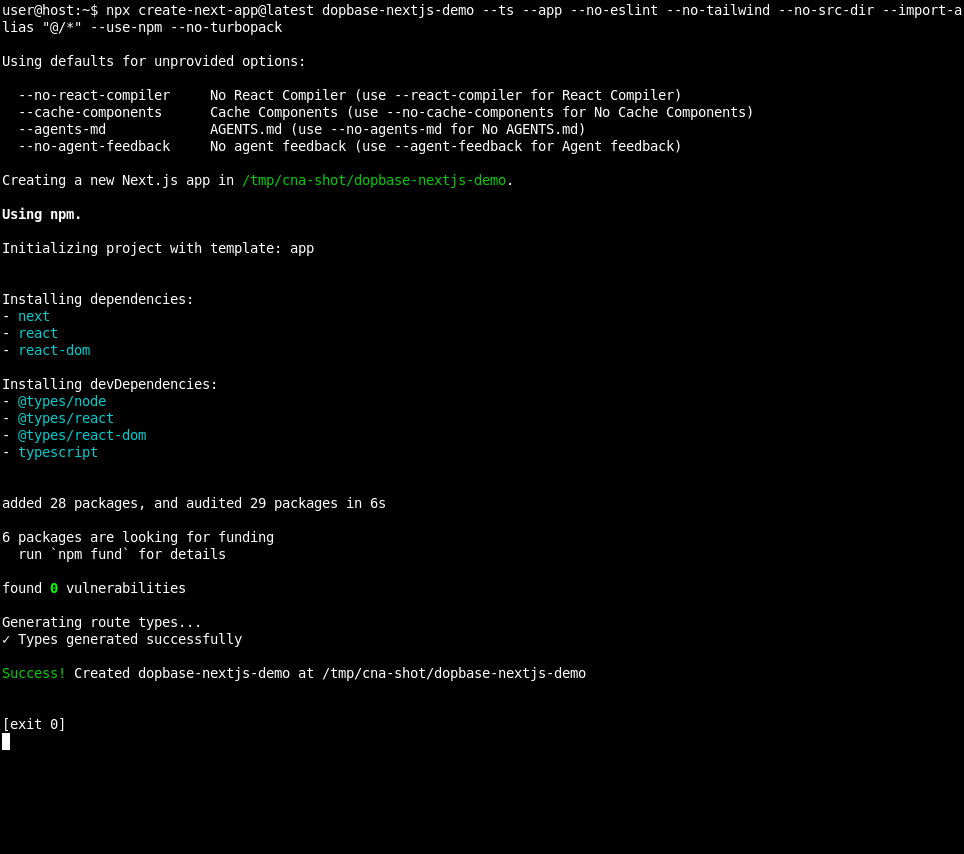
npx create-next-app@16.4.2 dopbase-nextjs-demo --yes --no-src-dir --use-npm
cd dopbase-nextjs-demo
The app uses TypeScript and the App Router. The --no-src-dir flag keeps the home page at app/page.tsx. The screenshot uses more scaffold options; the simpler command above gives us everything this demo needs.
If you already have a Next.js app, open its project directory and continue with step 3.
3. Import your development variables
In the app directory, create a file named nextjs.env and paste these sample values:
DATABASE_URL="postgresql://demo_user:demo-password@localhost:5432/dopbase_demo"
AUTH_SECRET="demo-auth-secret"
NEXT_PUBLIC_APP_NAME="Dopbase Notes"
NEXT_PUBLIC_API_BASE_URL="http://localhost:3000/api"
RESEND_API_KEY="demo-resend-key"
OPENAI_API_KEY="demo-openai-key"
These are placeholders for learning the workflow. They won’t authenticate with any service.
The supplied screenshot has different sample credentials, but the same six variable names:
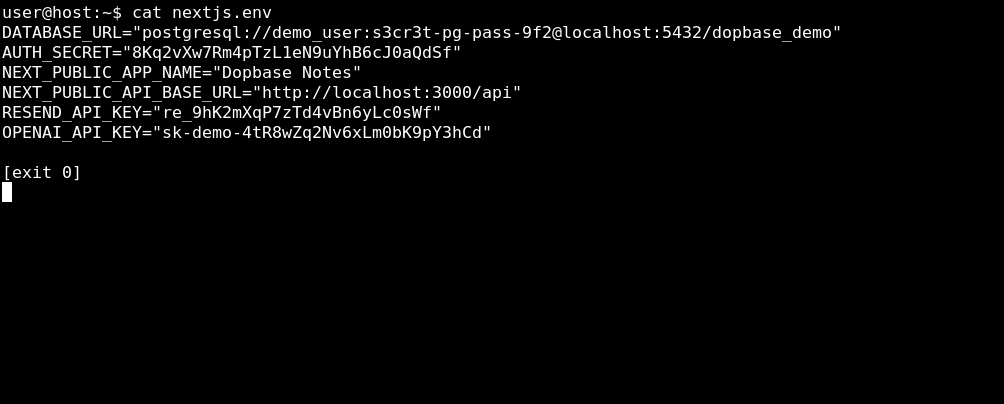
Import the file into a new Dopbase project:
dopbase init nextjs-demo/development --from nextjs.envnextjs-demo is the project name. development is the environment inside it. Dopbase creates both and stores the six entries as individual secrets.
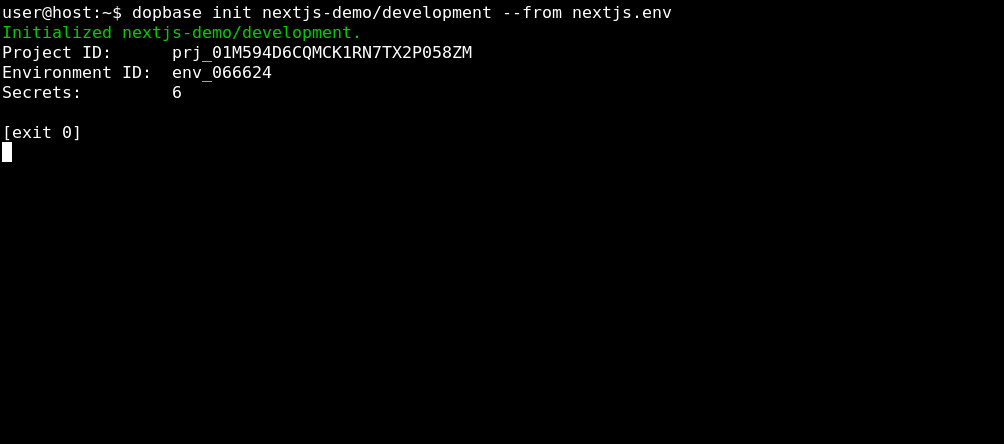
Check that the keys were imported:
dopbase secret list nextjs-demo/developmentYou should see six names with their versions. This command doesn’t print the values.
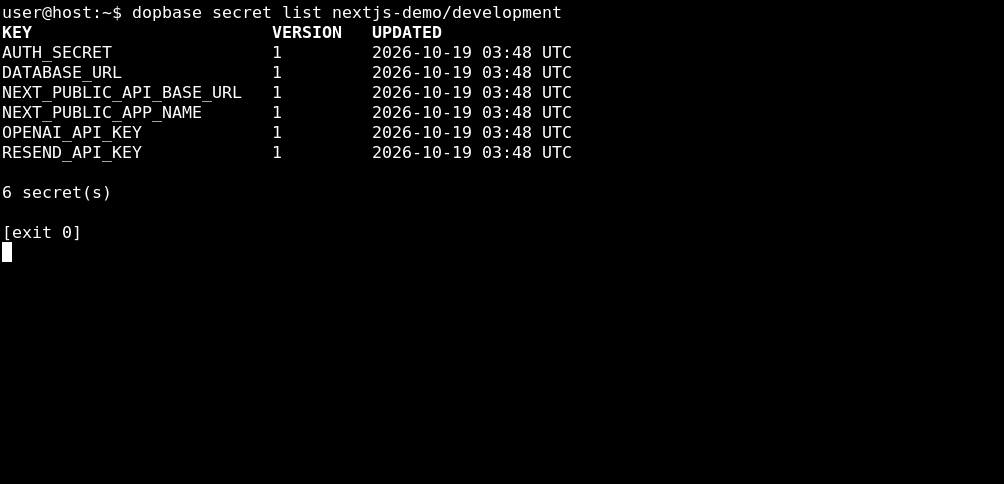
Once you’ve confirmed the import, delete the temporary file if it still exists:
rm -f nextjs.envFor your own credentials, keep the import file outside the repository and pass its path to --from. The scaffold’s .env* ignore rule doesn’t cover nextjs.env. You can keep a secret-free .env.example in Git to document the names your app expects.
4. Add a simple demo page
Replace app/page.tsx with:
export default function Home() {
  const configured = {
    DATABASE_URL: Boolean(process.env.DATABASE_URL),
    AUTH_SECRET: Boolean(process.env.AUTH_SECRET),
    RESEND_API_KEY: Boolean(process.env.RESEND_API_KEY),
    OPENAI_API_KEY: Boolean(process.env.OPENAI_API_KEY),
  };

  return (
    <main>
      <h1>{process.env.NEXT_PUBLIC_APP_NAME}</h1>
      <p>API URL: {process.env.NEXT_PUBLIC_API_BASE_URL}</p>
      <ul>
        {Object.entries(configured).map(([name, present]) => (
          <li key={name}>
            {name}: {present ? "configured" : "missing"}
          </li>
        ))}
      </ul>
    </main>
  );
}
This page is a Server Component by default. During local development, it reads the environment provided to the Next.js process.
The app name and API URL are public configuration. For the private variables, the page renders only configured or missing. It never prints a password or API key, even partially. You don’t need a Dopbase SDK or an extra API route for this example.
5. Run Next.js with Dopbase
From the app directory, start the dev server:
dopbase run nextjs-demo/development -- npm run devDopbase retrieves the selected environment and starts npm run dev with those values. The -- separates Dopbase’s arguments from the command you’re launching.
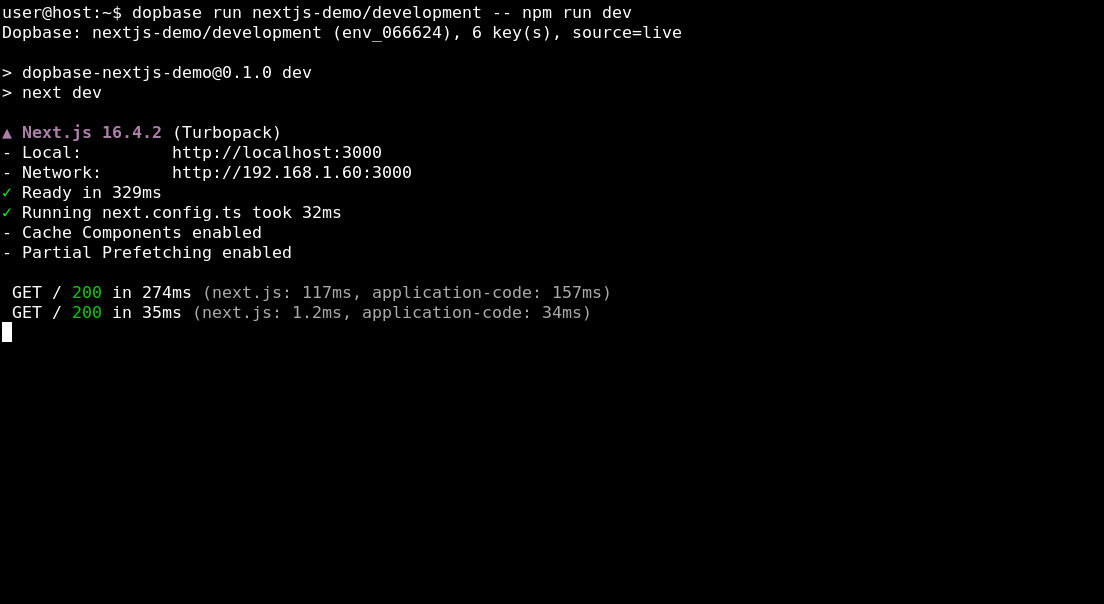
Open localhost:3000. You should see:
- The heading “Dopbase Notes”.
- The API URL
http://localhost:3000/api. - Four private variables marked
configured.
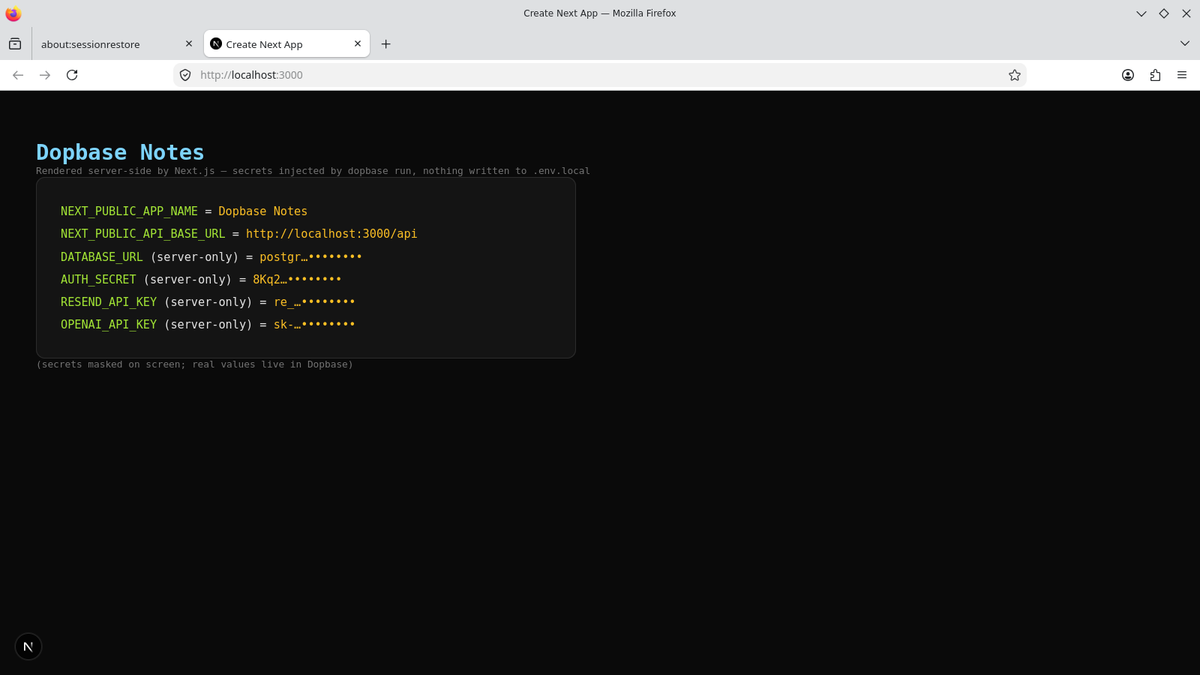
The original screenshot uses a custom dark layout and shows fragments of sample credentials. Your page will use the scaffold’s styling and show presence checks instead.
There is no .env.local to create. Next.js reads the values from its process environment, which takes precedence over environment files in its documented lookup order.
6. Update a variable
Stop the Next.js dev server with Ctrl+C. Leave the Dopbase server running.
Update the app name:
dopbase secret set nextjs-demo/development NEXT_PUBLIC_APP_NAMEAt the prompt, enter Dopbase Notes v2. The CLI prompts for the value so you don’t have to include it in shell history.
Start the dev server again:
dopbase run nextjs-demo/development -- npm run devRefresh the browser. The heading should now read “Dopbase Notes v2”.
Use the same sequence when changing another variable: update it in Dopbase, then restart Next.js through dopbase run. An already running process keeps the values it received at startup.
Questions and answers
Can I use this with an existing Next.js app?
Yes. Skip the scaffold step, import your development variables, and wrap your existing dev command with dopbase run. Keep reading process.env where your app already does. The example uses app/page.tsx; if your app has a src directory, its page lives at src/app/page.tsx.
Do I still need dotenv or .env.local?
You don’t need either for the values Dopbase supplies. Next.js reads them from process.env. Keep an .env.example with names and safe placeholders if it helps someone understand the project. The dotenv guide explains the difference between documenting variables and storing their real values.
Which variables should use NEXT_PUBLIC_?
Only values you’re willing to expose to the browser, such as an app name or a public API address. Never add that prefix to a database password or private API key. A Server Component can also leak a secret if you render its value into HTML, so keep the presence checks in this demo.
What if init says the project already exists?
If nextjs-demo/development already exists, import into it instead of creating the project again:
dopbase import nextjs-demo/development nextjs.envIf the project exists but the environment doesn’t, create the environment first:
dopbase env create nextjs-demo/development
dopbase import nextjs-demo/development nextjs.env
Check the imported keys before deleting the temporary file.
What if a variable is missing or still has the old value?
Check that the key exists in the environment you’re launching:
dopbase secret list nextjs-demo/developmentThen stop the old dev server and start it again through dopbase run. Running plain npm run dev won’t fetch anything from Dopbase. Avoid printing process.env to debug this: Dopbase doesn’t redact secrets your app logs.
Does Dopbase have to stay online while I code?
An already running app keeps its injected values if Dopbase goes offline. A new launch needs a live fetch or a usable matching encrypted cache from an earlier run. Authentication and permission failures don’t fall back to cached values. The Dopbase runtime guide explains the cache behavior.
Conclusion
The integration changes how your local Next.js process receives configuration. Your application still uses process.env; Dopbase stores the values and supplies them when you launch the dev server.
Once the import is complete, the daily workflow is one command:
dopbase run nextjs-demo/development -- npm run devWhen a value changes, update it in Dopbase and restart the app. That gives you one place to maintain development configuration while keeping working credentials out of the project directory.