How to Use DeepSeek with Claude Code: Simple Setup
Set up DeepSeek with Claude Code on macOS or Linux. Configure your API key, endpoint, and models, then use Dopbase to keep the settings in one place.
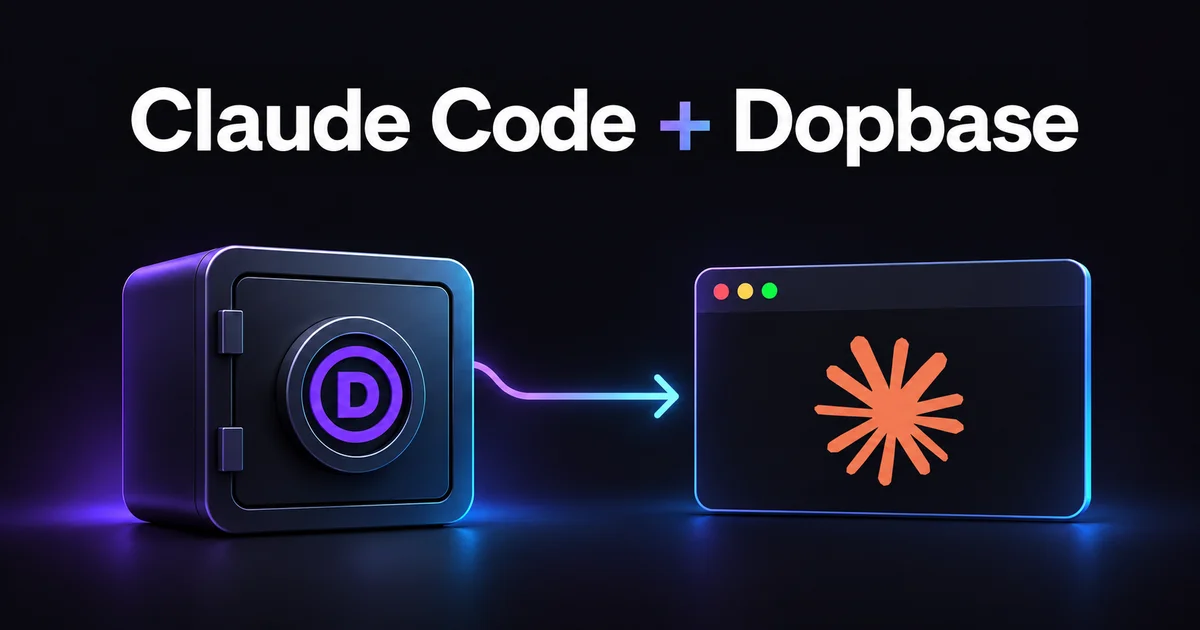
You can use DeepSeek with Claude Code by setting a DeepSeek API key, pointing the API URL at DeepSeek’s Anthropic-compatible endpoint, and choosing the model IDs Claude Code should request.
The terminal tool stays familiar, while the model answering your requests comes from DeepSeek. The official DeepSeek integration guide documents this connection.
The setup gets harder to follow when those values are split between a shell profile and several settings.json files. A token update can leave one project working and another still using the old configuration.
This walkthrough uses Dopbase, an open-source, self-hosted secrets manager, to store the DeepSeek configuration and pass it to Claude Code at launch.
You’ll import the values once, check a short response, and start an interactive session. Dopbase is optional for connecting to DeepSeek; this guide uses it to give the settings one place to live.
Once configured, the launch command is:
dopbase run claude-code/development -- claudeThe commands below are for macOS and Linux. Screenshots come from the supplied Dopbase 0.1.9 walkthrough; the copyable model values follow DeepSeek’s current guide.
Contents
- When this setup is useful
- How Claude Code connects to DeepSeek
- 1. Get your DeepSeek API key and prepare the tools
- 2. Prepare the DeepSeek environment variables
- 3. Import the configuration into Dopbase
- 4. Run Claude Code with DeepSeek
- 5. Update your DeepSeek API key or model
- 6. Set a default environment
- Troubleshoot the DeepSeek connection
- Questions and answers
- Conclusion
When this setup is useful
Use this walkthrough when you want to run Claude Code against DeepSeek and keep its provider configuration together:
- You work across several repositories and want to launch Claude Code with the same DeepSeek configuration from each one.
- You regularly change DeepSeek models or rotate an API key and want one place to update the values.
- You use more than one machine and want each CLI to fetch configuration from the same self-hosted Dopbase server after connecting and signing in.
For one machine with a provider configuration that rarely changes, an existing settings.json may be enough. Dopbase adds a server and a CLI login to maintain. Its benefit here is a shared source for the values you would otherwise copy between files or machines.
How Claude Code connects to DeepSeek
Three pieces of configuration determine this connection: ANTHROPIC_AUTH_TOKEN holds your DeepSeek API key, ANTHROPIC_BASE_URL points to https://api.deepseek.com/anthropic, and the model variables select DeepSeek’s models. The variable names still start with ANTHROPIC_ because Claude Code uses the Anthropic API format.
Claude Code reads these values from its environment. It can also read them under env in settings.json, as described in the Claude Code environment variable reference.
Dopbase can supply those variables at launch. Permissions, hooks, and other file-based settings still belong in Claude Code’s own configuration. You don’t need to move or delete the rest of your .claude directory.
Keep this Dopbase environment dedicated to the coding tool’s provider configuration. Claude Code receives the injected token, and its subprocesses may inherit it.
Putting database passwords or production application credentials in the same environment would hand those values to the agent too. The guide to keeping secrets out of an AI coding workspace covers that separate boundary.
1. Get your DeepSeek API key and prepare the tools
Create an API key in the DeepSeek Platform. Requests in this setup go to your DeepSeek API account and use DeepSeek’s API billing. A Claude subscription doesn’t pay for those requests.
You’ll also need an installed Claude Code CLI. If it’s missing, follow Claude Code’s installation instructions before continuing.
Install Dopbase using the official quick start, then check both tools:
curl -fsSL https://dopbase.com/install.sh | sh
dopbase -v
claude --version
If the shell can’t find Dopbase after installation, add the installer’s reported directory, normally ~/.local/bin, to PATH.
For a fresh local server, run:
DOPBASE_ROOT_EMAIL=admin@example.com dopbase server start -bReplace the email with yours. On fresh storage, this creates the root account and prints its generated password once. Save the password before closing the terminal. The -b flag starts the server in the background. An already initialized instance keeps its existing account.
If you use an existing remote server, connect to that server instead of starting a local one:
dopbase client connect https://dopbase.example.comReplace the example address with your server’s HTTPS URL. Then check the selected connection and authenticate:
dopbase client status
dopbase login
For the local setup, the default address is http://localhost:8840. Check that client status reports the server you intend to use before signing in. Browser login and CLI login are separate; dopbase login saves an encrypted local CLI session.
2. Prepare the DeepSeek environment variables
Create a simple folder in your home directory, outside your project:
mkdir ~/claude-config
cd ~/claude-config
Create a file named claude.env in that folder using your editor and add:
ANTHROPIC_AUTH_TOKEN=replace-with-your-deepseek-api-key
ANTHROPIC_BASE_URL=https://api.deepseek.com/anthropic
ANTHROPIC_DEFAULT_HAIKU_MODEL="deepseek-flash"
ANTHROPIC_DEFAULT_OPUS_MODEL="deepseek-flash[1m]"
ANTHROPIC_DEFAULT_SONNET_MODEL="deepseek-flash[1m]"
ANTHROPIC_MODEL="deepseek-flash[1m]"
CLAUDE_CODE_SUBAGENT_MODEL="deepseek-flash"
ENABLE_TOOL_SEARCH=false
Replace the token placeholder with your DeepSeek API key. This temporary file contains plaintext, so keep it out of source control and remove it after the import succeeds. If dotenv syntax is unfamiliar, the environment file guide explains quoting and variable names.
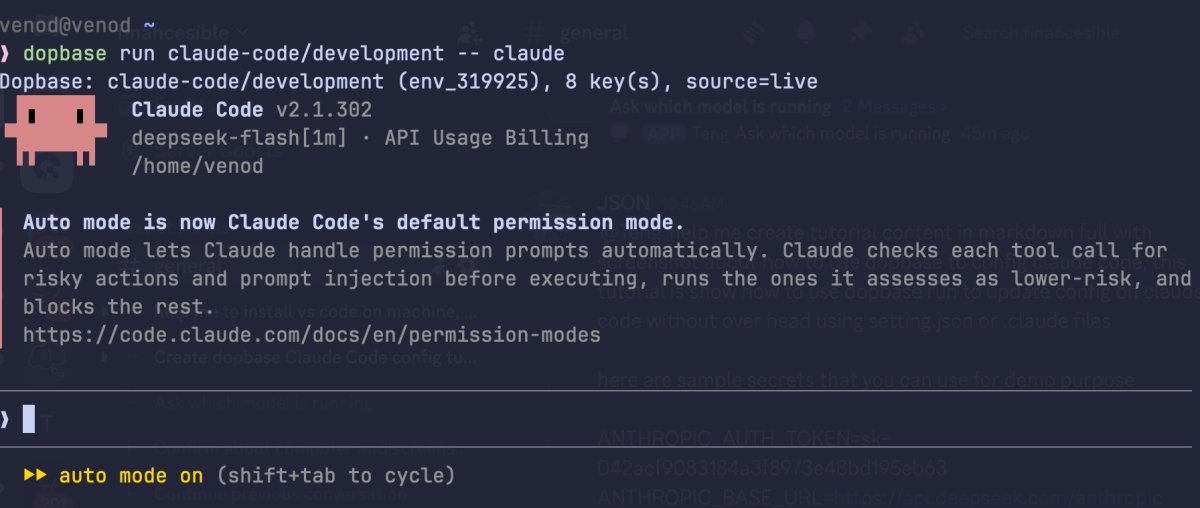
The endpoint and model choices follow DeepSeek’s Claude Code integration guide. The screenshot below uses an earlier deepseek-v4-flash[1m] value for Haiku and subagents
The copyable example uses the current deepseek-flash recommendation. Effort and compaction tuning from DeepSeek’s guide are outside this basic setup.
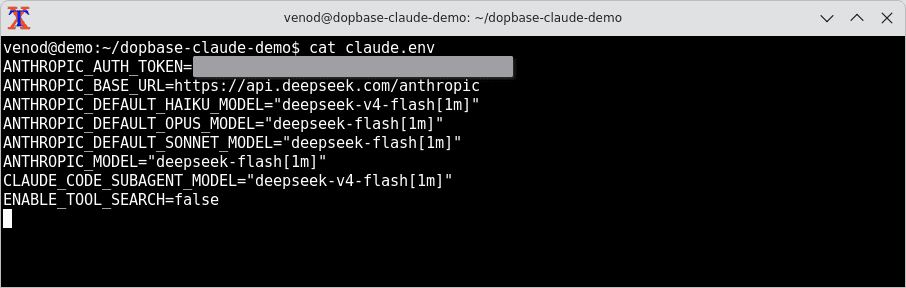
ANTHROPIC_AUTH_TOKEN supplies bearer authentication; ANTHROPIC_BASE_URL selects the endpoint. The default model variables map Claude Code’s model aliases to provider model IDs. Setting the Opus alias to a DeepSeek model doesn’t turn that model into Claude Opus.
ENABLE_TOOL_SEARCH=false explicitly disables MCP tool search for this example. It isn’t a requirement for storing configuration in Dopbase. Consult the Claude Code variable reference before changing feature switches for another provider.
3. Import the configuration into Dopbase
From ~/claude-config, create the project and its first environment:
dopbase init claude-code/development --from claude.envDopbase validates the file and creates the project, environment, and individual secret records atomically. The target is claude-code/development: project name first, environment name second. The import guide explains the supported formats and validation.
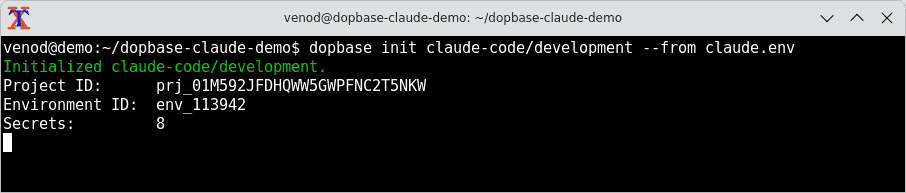
Check the stored keys:
dopbase secret list claude-code/development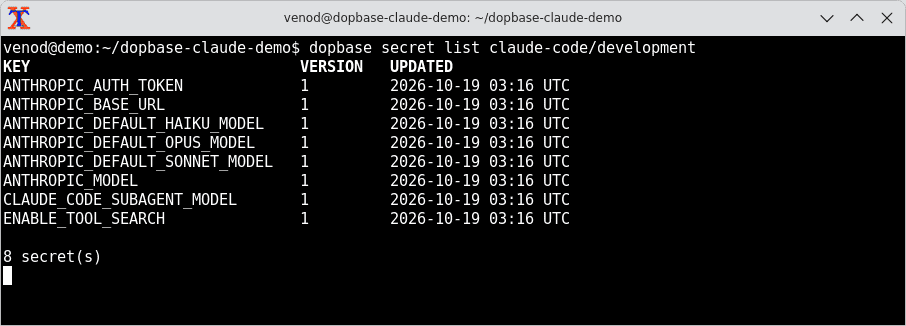
The list shows names and metadata without revealing the values. After a successful import, remove the temporary file from ~/claude-config:
rm claude.envThis removes the plaintext import file you just created. Deleting a file doesn’t guarantee that editor backups or filesystem snapshots lose their copies.
If claude-code already exists, use dopbase import claude-code/development <file> for an existing environment rather than trying to initialize the same project again.
4. Run Claude Code with DeepSeek
Leave the configuration folder and open the project you want Claude Code to work in. Replace the example path below with your project directory, then make a short request:
cd /path/to/your-project
dopbase run claude-code/development -- claude -p "Reply with exactly: OK"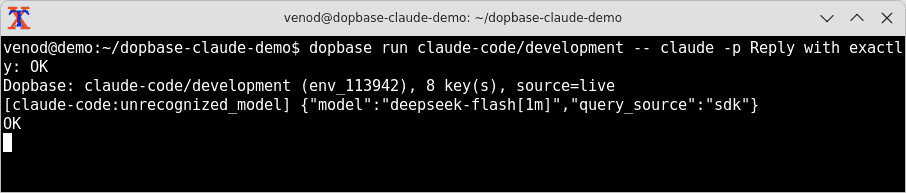
The Dopbase banner identifies the environment, key count, and fetch source. source=live means this launch fetched the configuration from the server. The screenshot’s OK is evidence that this particular request completed; it doesn’t test every Claude Code feature.
For an interactive session:
dopbase run claude-code/development -- claude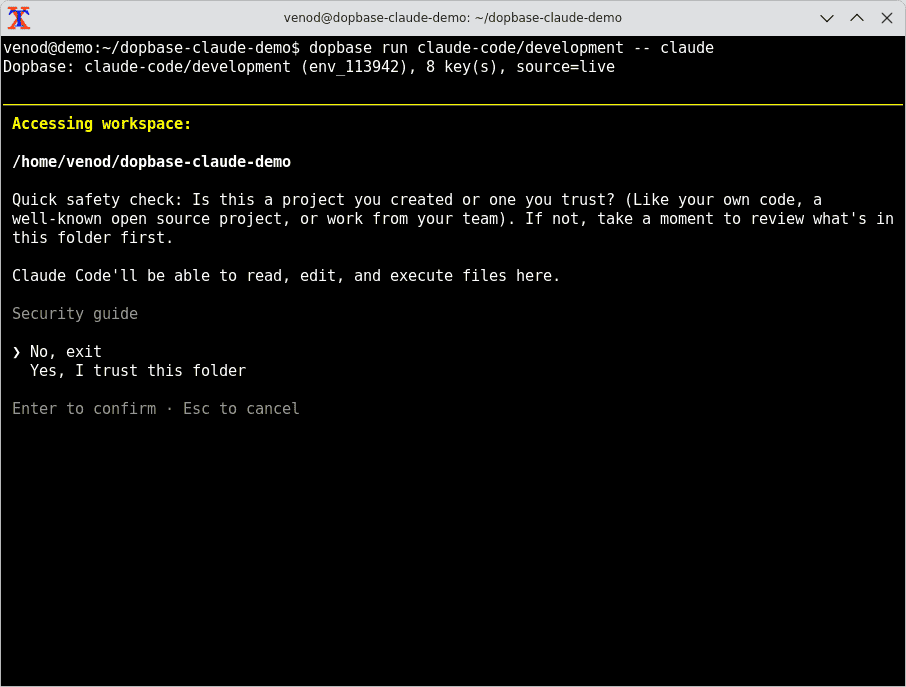
Review the workspace trust prompt as you normally would. Dopbase supplies configuration, it doesn’t change which files or commands you should allow Claude Code to access.
5. Update your DeepSeek API key or model
To replace your DeepSeek API key, use the masked prompt:
dopbase secret set claude-code/development ANTHROPIC_AUTH_TOKENPaste the replacement value when prompted. This keeps it out of the command itself. The supported syntax takes the environment and key as separate arguments; it doesn’t take a KEY=value assignment.
Use the same command with ANTHROPIC_MODEL to change the main model, or edit the environment in the Admin UI. On a default local server, the UI is at http://localhost:8840. See the secret command reference for automation through --stdin.
Launch Claude Code again after the update. A new live fetch gets the changed values; an already running session keeps the environment it received at startup.
For a shorter daily command, add this alias to ~/.zshrc or ~/.bashrc and open a new terminal:
alias dclaude='dopbase run claude-code/development -- claude'Then run dclaude from your project directory. The alias contains the environment reference, so there are no API keys to copy into your shell profile.
6. Set a default environment (optional)
If you usually use the same configuration, save it as the default for the selected Dopbase server:
dopbase env default claude-code/developmentYou can then launch Claude Code without typing the environment reference:
dopbase run -- claudeDopbase saves this default in your local user configuration for that server. It applies across directories on this machine. Other machines need their own default. A different server has a separate default.
Environment selection follows this order: an explicit command argument, then DOPBASE_ENV, then the saved default. If you use Dopbase for application commands too, keeping the environment explicit can make it easier to see which values each command receives. See the environment targeting guide for the full rules.
Clear the default when you no longer want it:
dopbase env default --clearClearing it leaves your stored secrets intact. With no explicit environment, no DOPBASE_ENV, and no saved default, dopbase run stops and asks you to choose one.
Troubleshoot the DeepSeek connection
If Claude Code still uses an old value, inspect the env entries in user, project, and local settings.json files. They can replace variables inherited from Dopbase. Remove duplicate entries that you intend Dopbase to manage, while keeping unrelated settings. Managed organization settings may also apply. Claude Code documents these rules under environment variable precedence.
The screenshot includes an unrecognized_model warning before a successful response. Don’t assume every custom-model warning is harmless. Confirm that the provider accepts your model ID and check the actual response.
For authentication errors, check that ANTHROPIC_AUTH_TOKEN contains a valid DeepSeek API key. For routing errors, confirm that ANTHROPIC_BASE_URL is https://api.deepseek.com/anthropic and that your model ID matches DeepSeek’s integration guide.
Dopbase can use a matching encrypted cache during a server outage. Check for source=cache and the reported cache age: a cached launch can use older values. Authentication and authorization failures stop the launch instead of triggering that fallback. The runtime guide describes the cache rules.
Dopbase doesn’t generate a new .env file when launching Claude Code, but encrypted server data, saved credentials, and runtime cache still exist on disk. Once Claude Code receives a value, its tools or logs can expose it. Avoid environment dumps and keep the injected environment limited to this provider setup.
Questions and answers
Do I need Dopbase to use DeepSeek with Claude Code?
You can configure the variables directly in your shell or in Claude Code’s settings file. Dopbase is the configuration storage and launch tool used in this walkthrough.
It becomes useful when you want to update the same settings across projects or fetch them from a shared server on more than one machine.
Does this run Claude models through DeepSeek?
This example requests DeepSeek models through Claude Code. Names such as ANTHROPIC_DEFAULT_OPUS_MODEL are configuration names in Claude Code; mapping one to deepseek-flash[1m] still requests a DeepSeek model. Model behavior and supported features depend on the provider.
Will running plain claude use my Dopbase default?
Only dopbase run reads the saved default. Running plain claude bypasses Dopbase and uses the configuration available to Claude Code normally. Use dopbase run -- claude after setting a default, or use the dclaude alias from step 5.
Can I use this with another provider?
You can use the same import-and-launch workflow with another provider that documents Claude Code support. Replace the endpoint, authentication variables, and model IDs with that provider’s configuration.
DeepSeek’s example values are specific to DeepSeek; an arbitrary OpenAI-compatible endpoint isn’t automatically compatible with Claude Code’s Anthropic API requests. Check the provider’s integration instructions before importing.
Do I need to keep claude.env after the import?
You can remove it once the import succeeds. Dopbase stores the imported records, so later launches don’t read that file. Update individual values through dopbase secret set or the Admin UI. Import another file only when you deliberately want to apply another batch of values.
Does this change Claude Code’s working directory?
The Dopbase environment reference selects configuration, not a code repository. Launch the command from the project you want Claude Code to work in, as shown in step 4. Selecting a default environment doesn’t select a working directory either.
Conclusion
To use DeepSeek with Claude Code, configure the DeepSeek API key, Anthropic-compatible endpoint, and model IDs together. Dopbase stores those values so you can update them without copying credentials into each project’s settings.
Start with the short OK request in step 4. Once it succeeds, open an interactive session in your project. If you saved the default environment, the daily command is:
dopbase run -- claudeWhen you rotate the key or change models, update the stored values and relaunch with a live fetch. Keep this environment limited to the DeepSeek configuration Claude Code needs.